
What is Automatic Max Pax Mode in Bookings?
When Automatic Max Pax mode is enabled, the system will automatically accept all incoming bookings until your set maximum capacity (Max Pax) is reached.
Always Accepts (Never Rejects):
- The system will not let you manually accept or reject any bookings.
- It will automatically accept bookings as long as the total number of people does not exceed your Max Pax.
Fully Booked = No More Bookings:
- Once your maximum capacity is reached, the system will not allow any more bookings.
- This ensures that you never overbook — no one can add a booking if you're already full.
Example:
- Let’s say your Max Pax is 20 people.
- Customers start booking:
- 5 people book → accepted
- 8 more people book → accepted (total: 13)
- 7 more people book → accepted (total: 20 — fully booked)
- Another person tries to book →will not be able to book and they will be prompted to book a different time, because you’ve hit your Max Pax.
How to use it follow the instructions below:
1. Log in to your WOWAPPS account at: https://ca.wowapps.com/
2. Click "Bookings" from the main menu.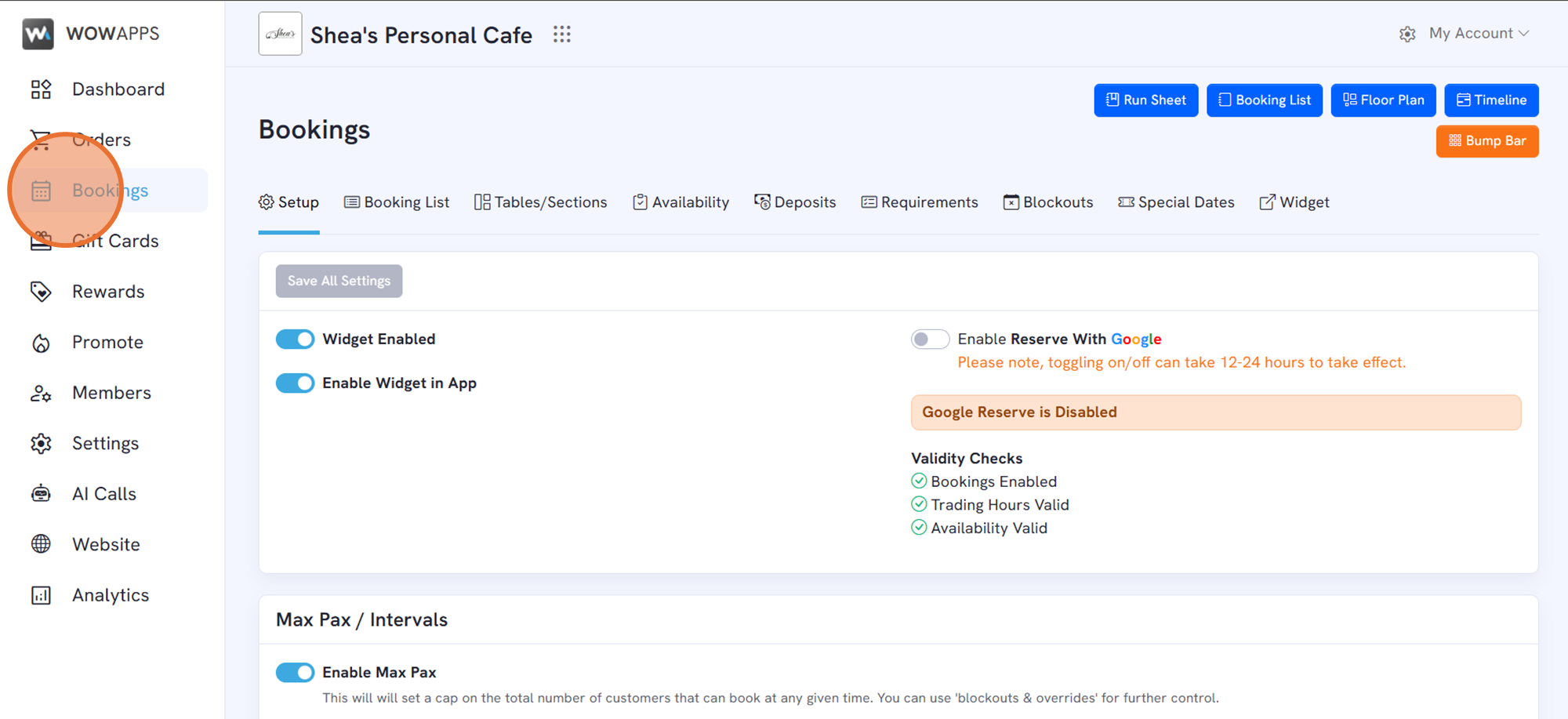
3. Toggle "Enable Max Pax" to control booking availability.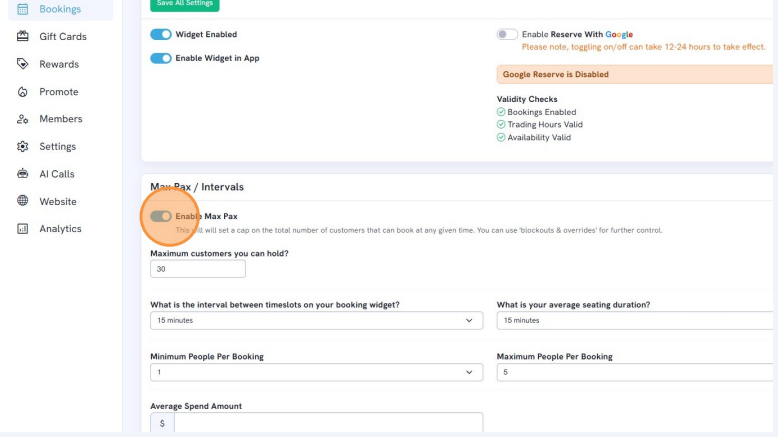
4. Set maximum number of customers the venue can hold.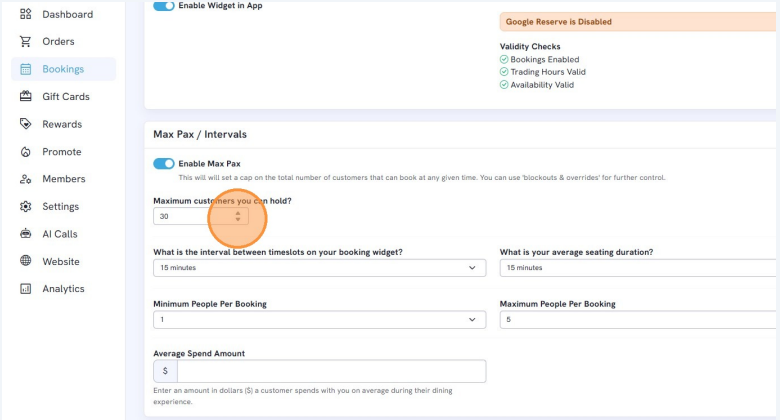
5. Select interval between booking timeslots.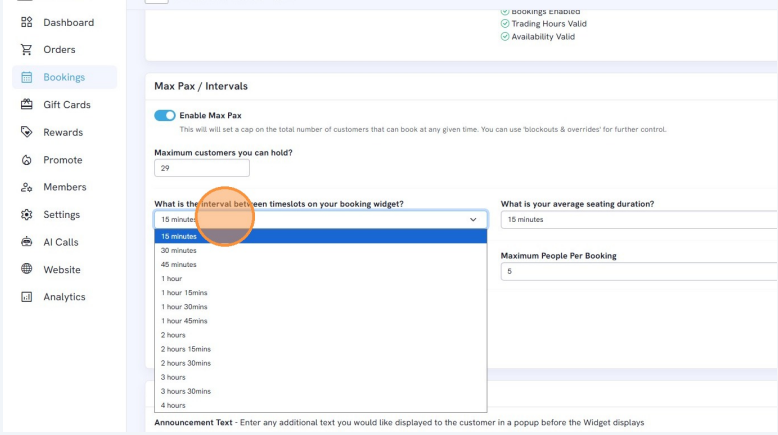
6. Select minimum guest count per booking.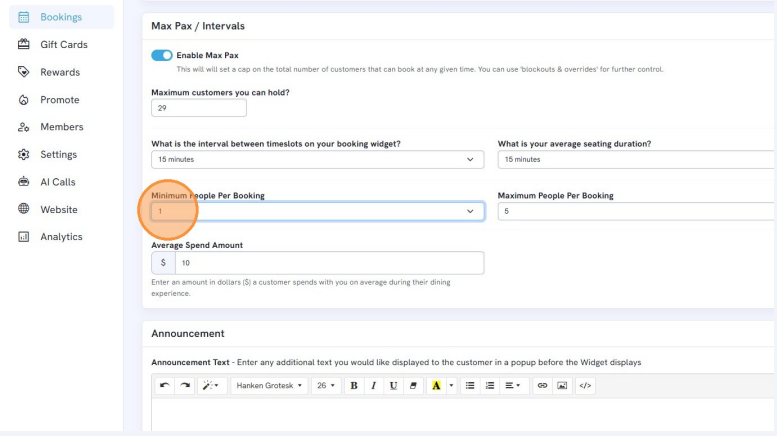
7. Enter average spend amount per person.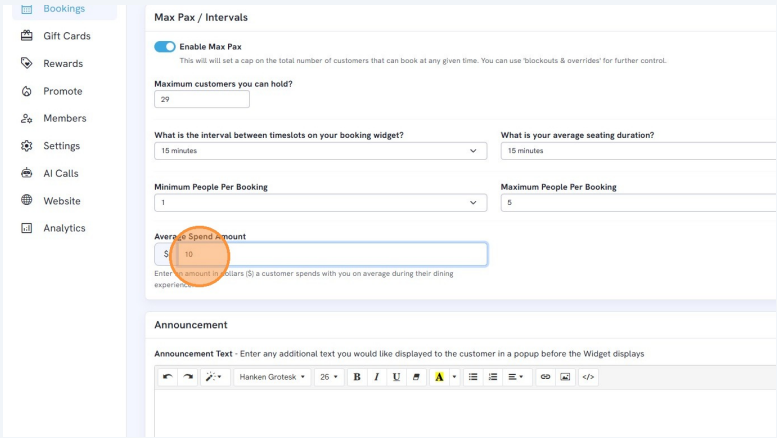
8. Set average seating duration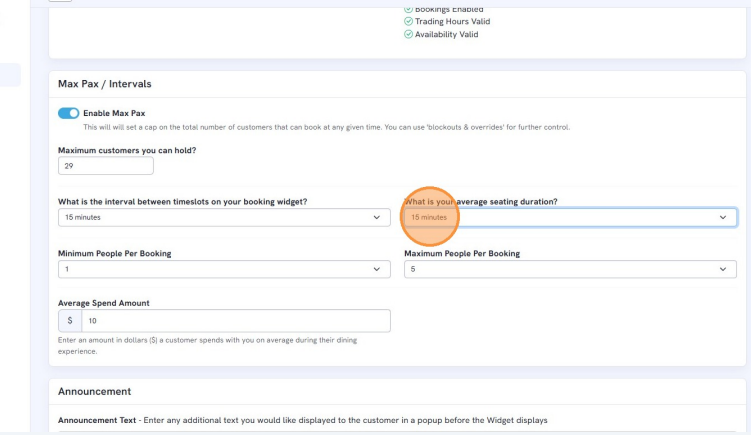
9. Select maximum guest count per booking.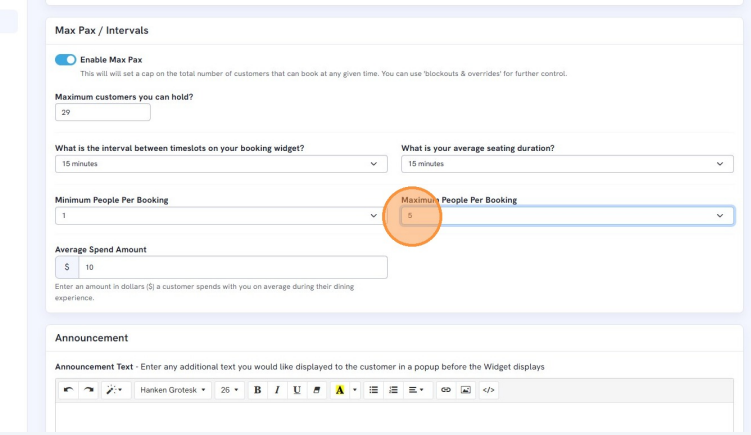
10. Announcement Text
Add custom text that will appear in a popup before the booking widget is shown.
Use this to display important messages, like:
- "Please note we are only accepting walk-ins today."
-
"Special event menu applies this weekend."