
Overview
A banner image helps make your ordering page more visually appealing and on-brand. This image appears at the top of your ordering page, positioned behind your logo.
Sample Preview
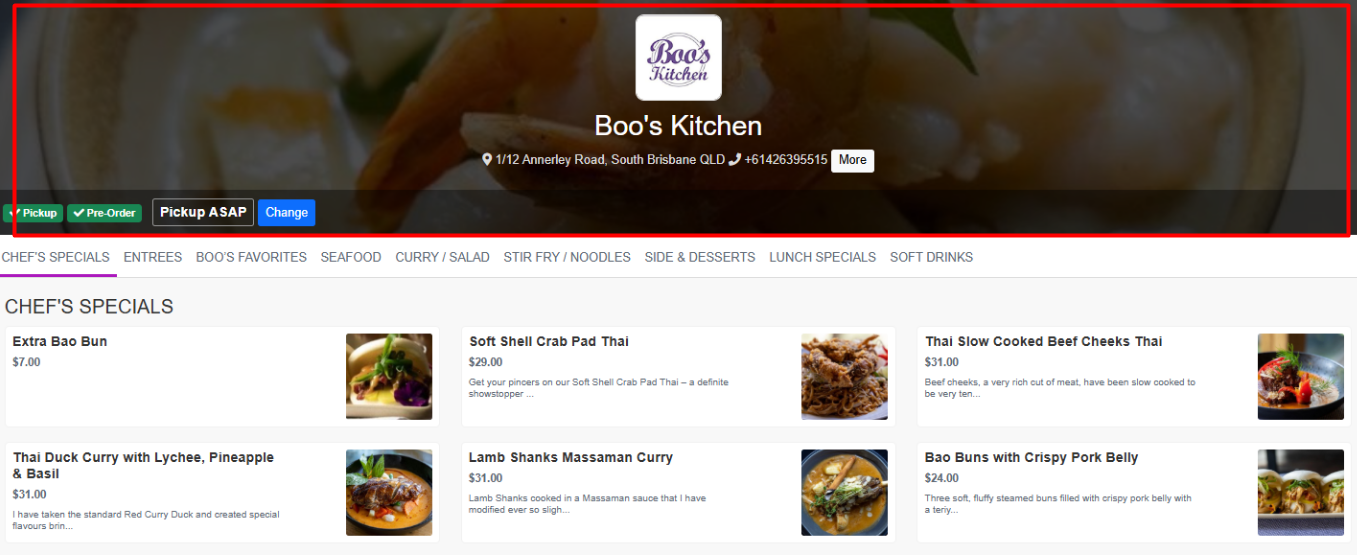
How to Add a Banner Image
Step 1: Go to Orders Setup
Log in to your WOWAPPS Manager
Open the Orders module
Click on the Setup tab
Step 2: Enable the Banner Image
Scroll down to the Banner Image section
Toggle Banner Image to ON
Step 3: Upload Your Image
Click Choose File
Select your banner image from your device, then click Open
Resize or crop the image as needed
Click Done to save your changes
Once uploaded, the banner image will automatically appear at the top of your ordering page.
Best Practices
Use a high-quality image for a professional look
Avoid placing important text near the edges of the image
Ensure the image reflects your brand or featured products
Adding a banner image helps create a strong first impression and enhances the overall customer ordering experience.